What Zee2 Player does
Zee2 Player plays the IPTV subscription you already have. It brings no channels of its own. Here is what you can do with it, and how each thing works.
Some features are still being tested on real devices. The Download page says what has and has not been tried.
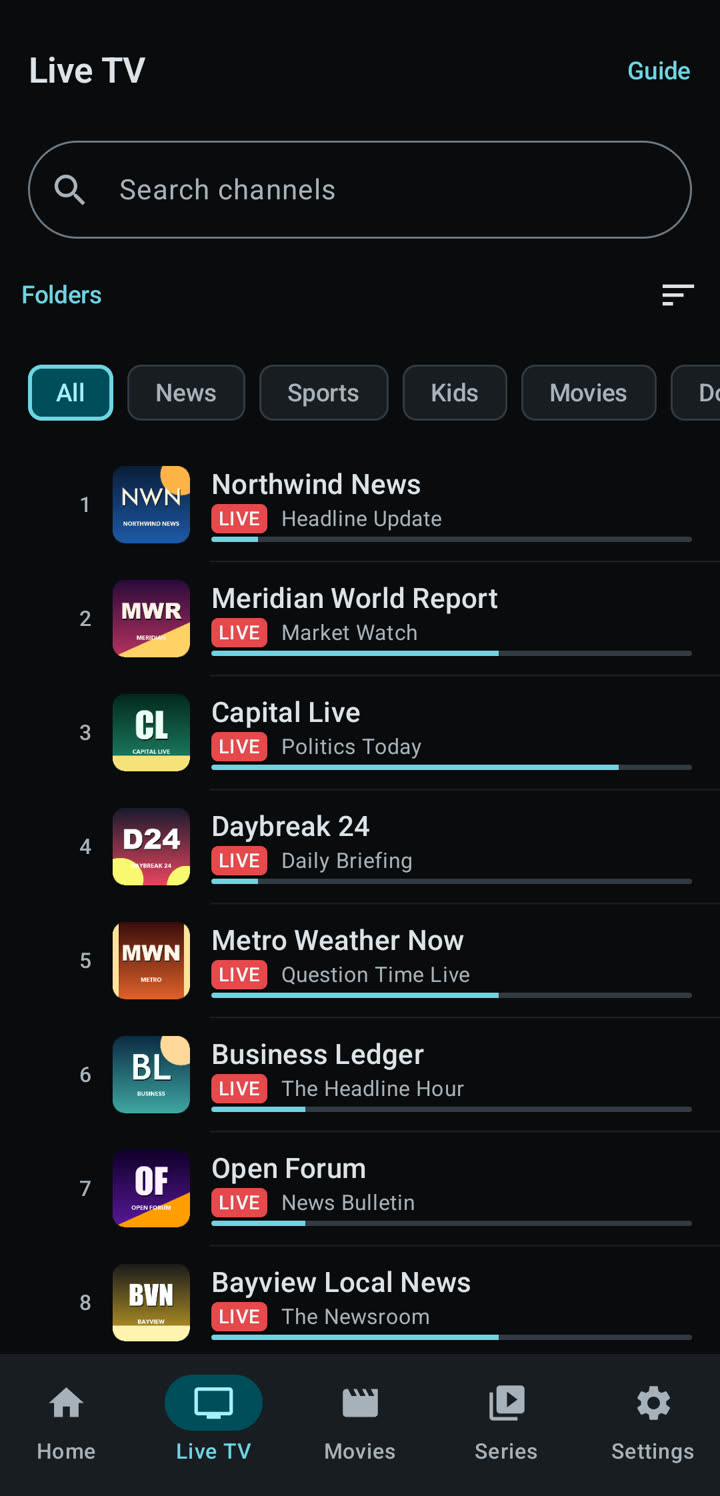
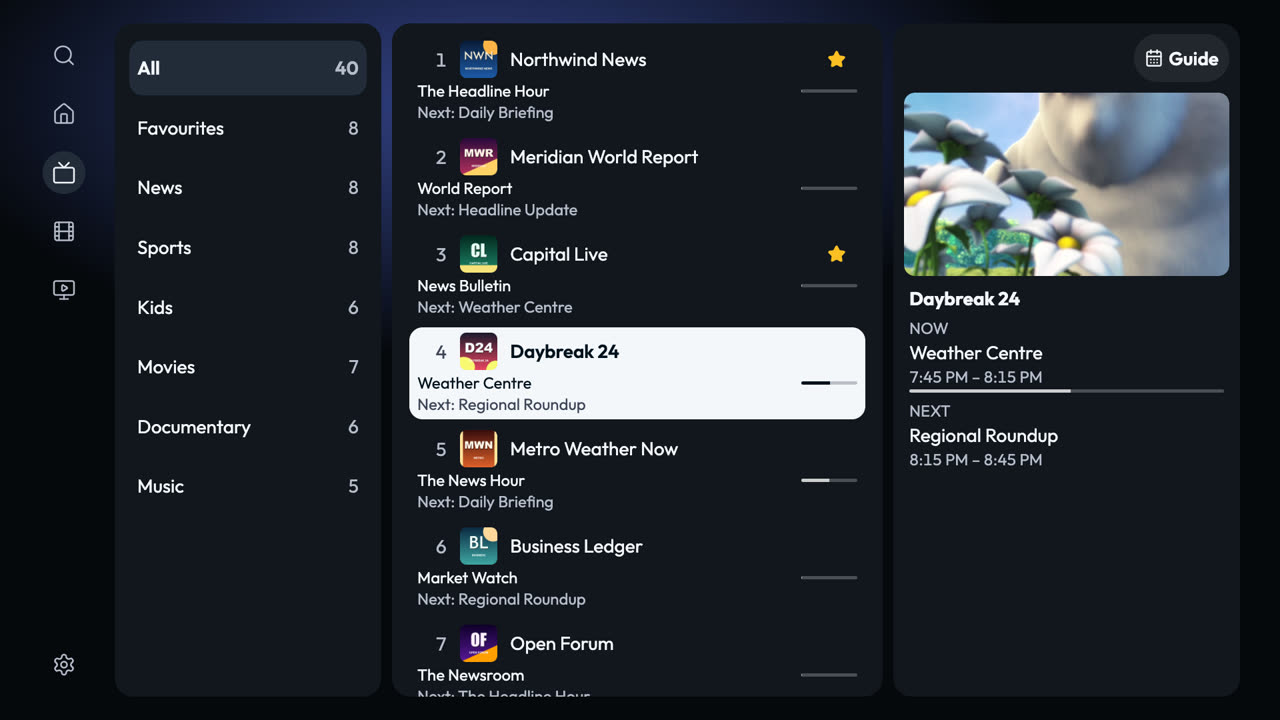
Watch live TV
Your provider’s channels, sorted into folders, with what is on now and next on each one.
How it works
Open Live TV, pick a folder and tap a channel. Switch to the next channel without going back to the list. Mark the ones you watch most as favourites.
- iPhone and iPad
- Android phone and tablet
- Smart TV
See what is on, and go back to it
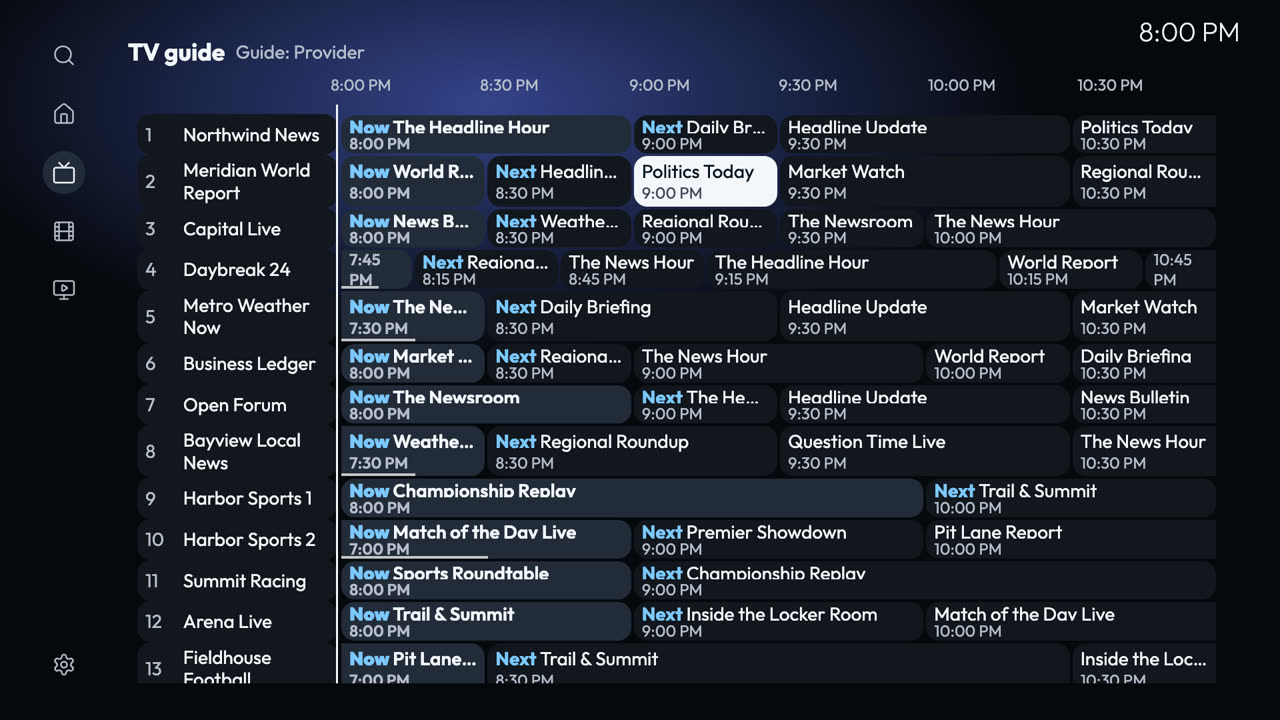
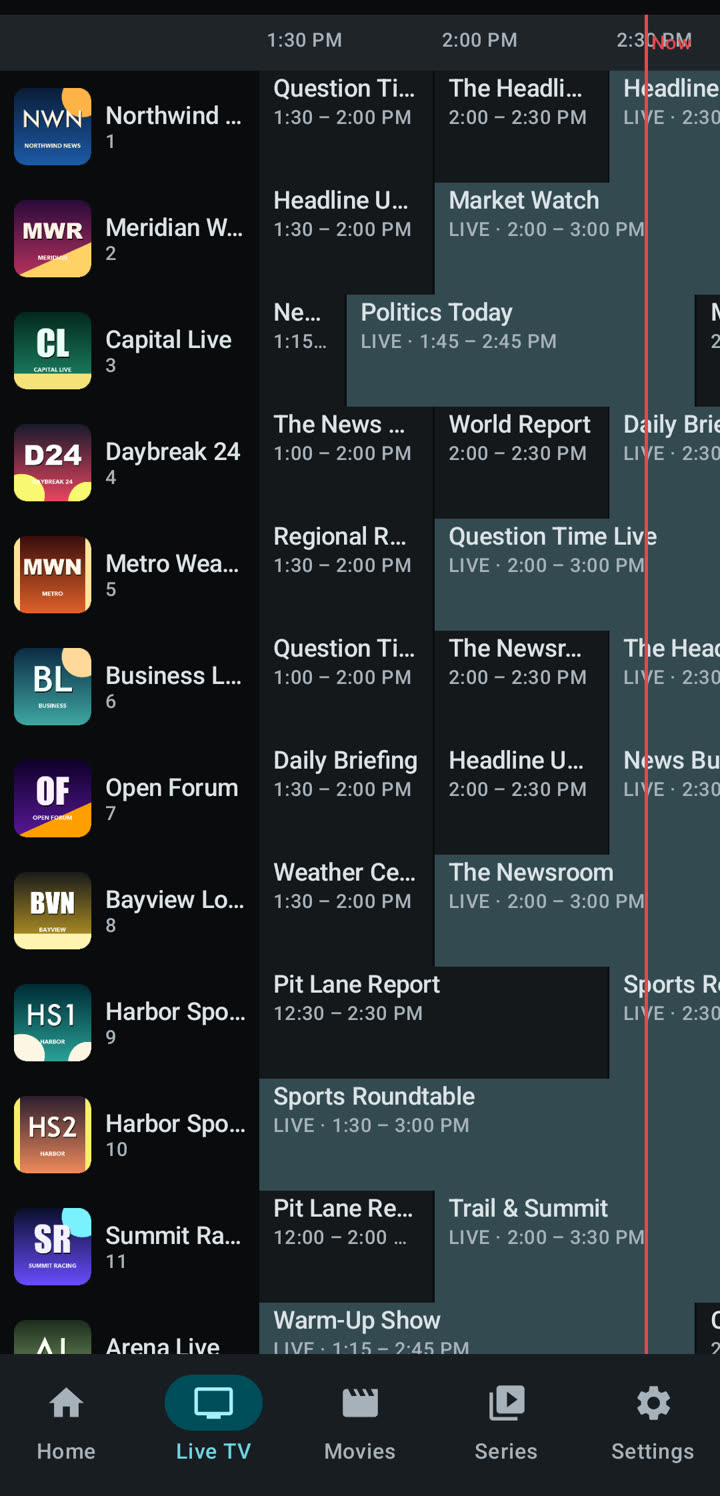
A programme guide with a grid of now and next, and catch-up for programmes that have already finished.
How it works
The guide comes from your provider, or from a guide address you add yourself. If your provider keeps an archive, a finished programme can be played from its start. Not every provider does, so catch-up depends on your subscription.
- iPhone and iPad
- Android phone and tablet
- Smart TV
Movies and series
Films and shows in folders, with a page for each one: details, seasons and episodes.
How it works
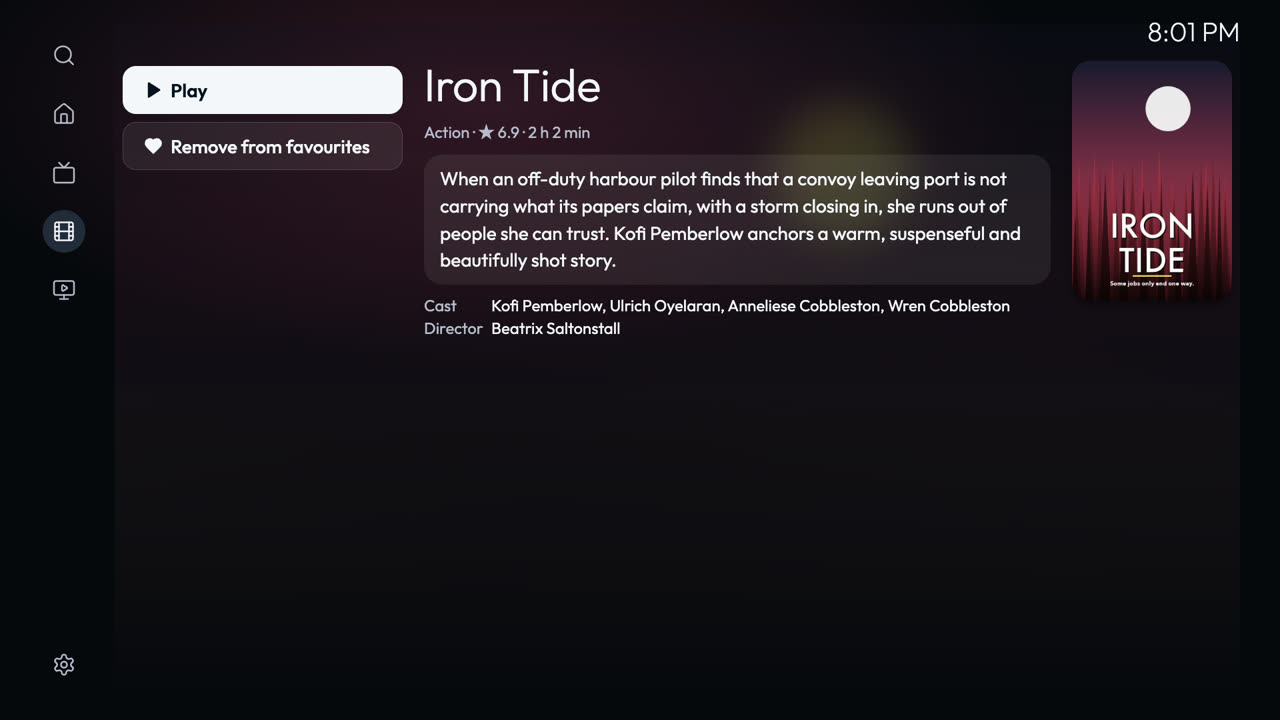
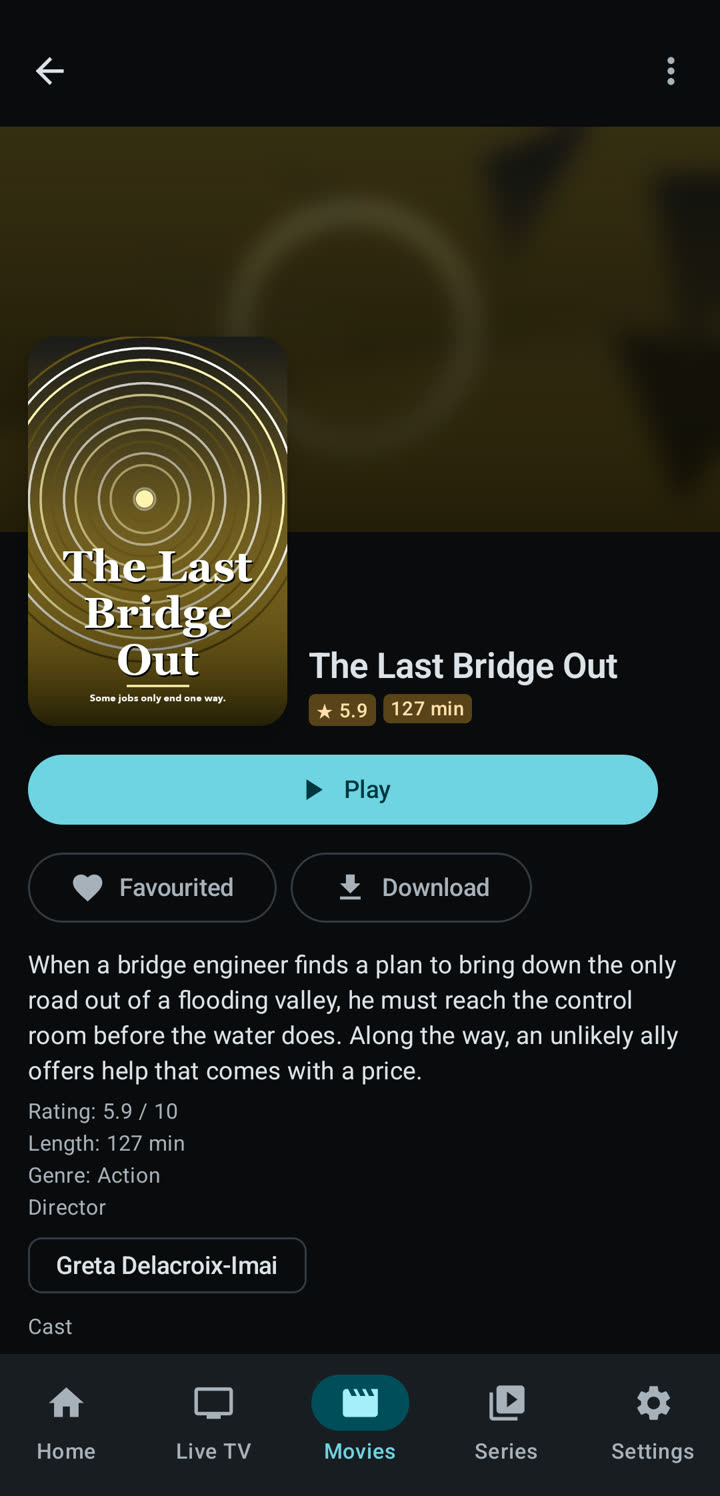
Open Movies or Series, choose a title and press play. Zee2 remembers where you stopped and offers to resume. In a series the next episode can start by itself.
- iPhone and iPad
- Android phone and tablet
- Smart TV
Find something to watch
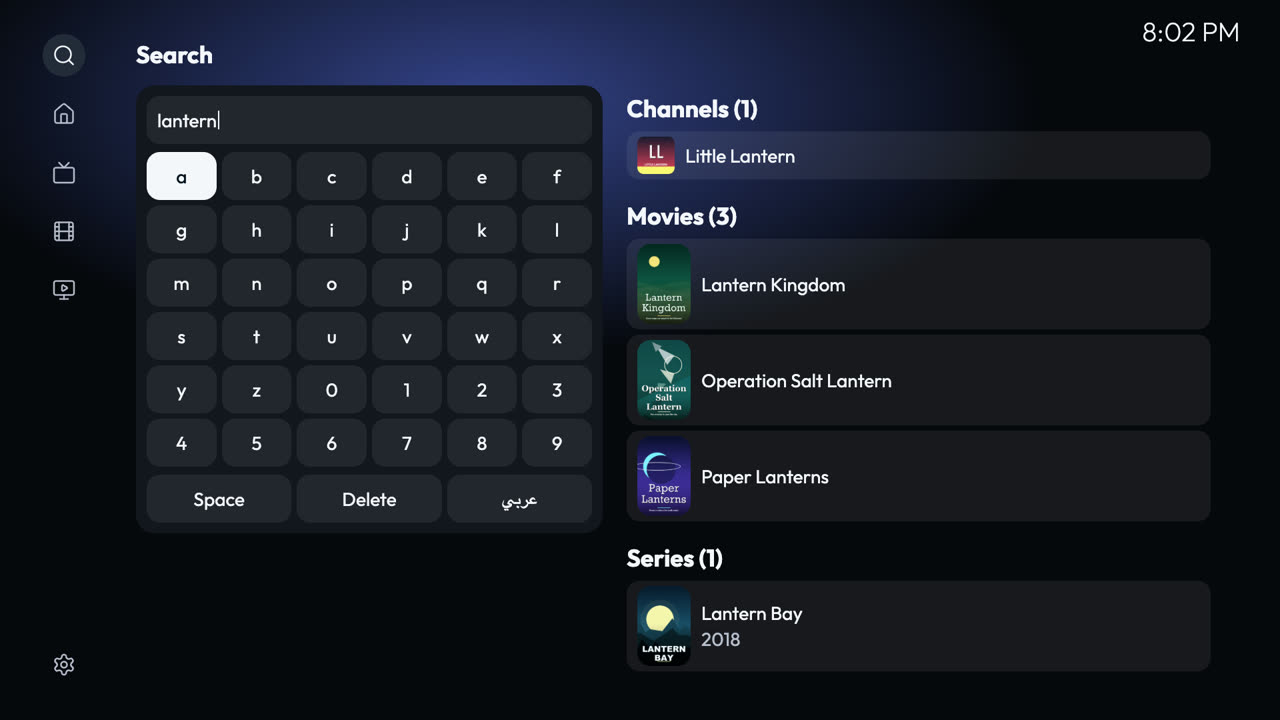
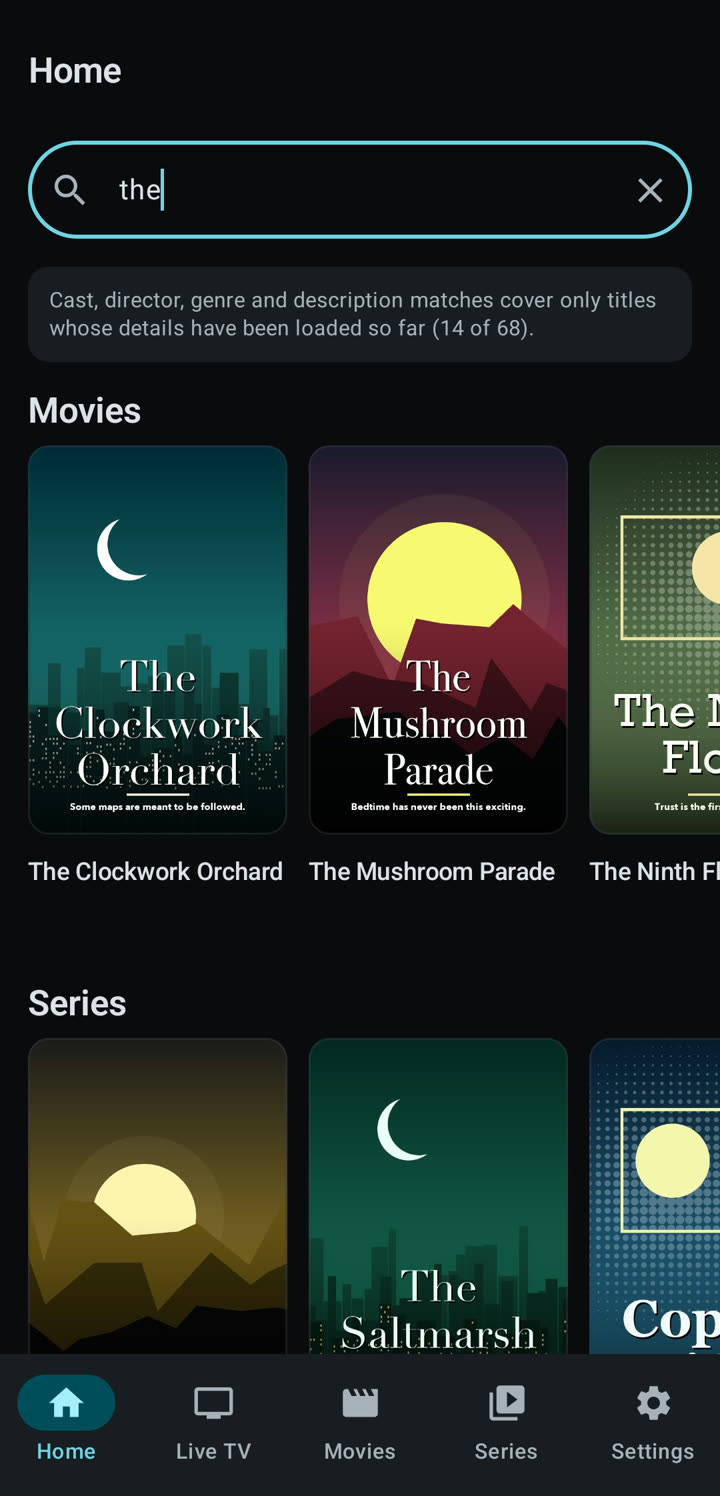
One search across channels, movies, series and folders.
How it works
Type two or more letters. Zee2 looks through titles and, where it has them, cast, directors and descriptions. The search runs on your device, not on a server.
- iPhone and iPad
- Android phone and tablet
- Smart TV
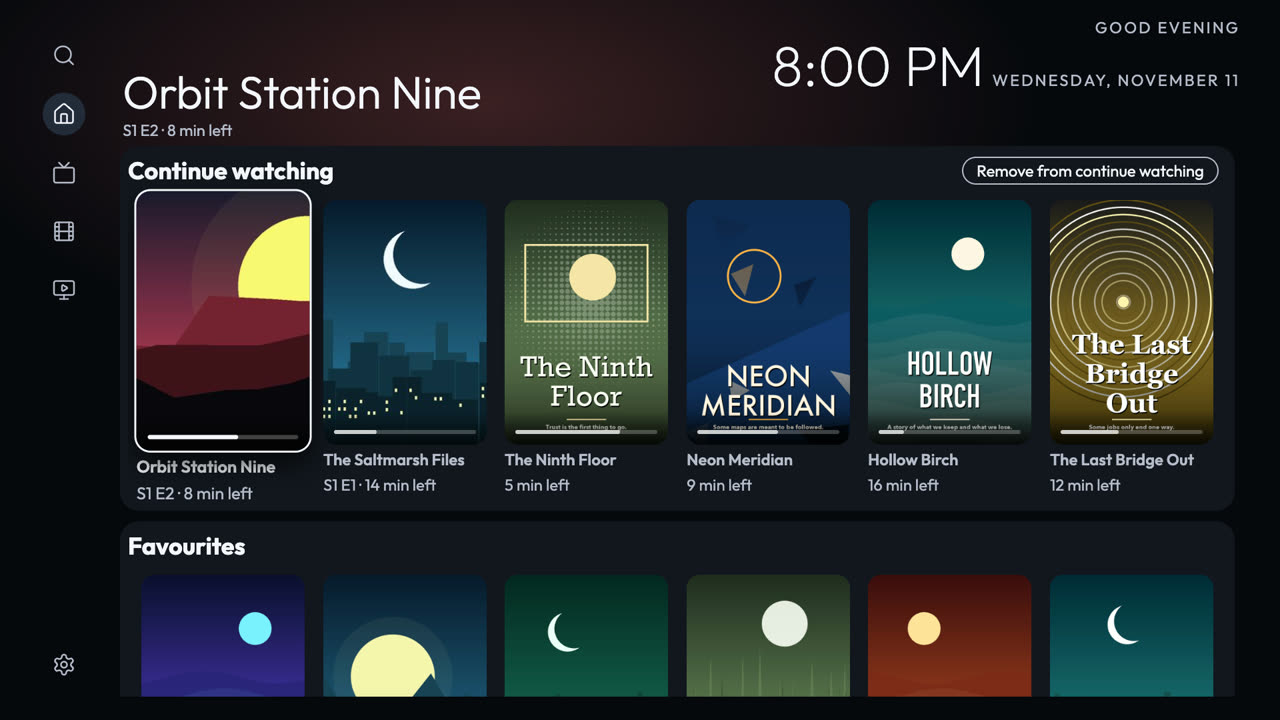
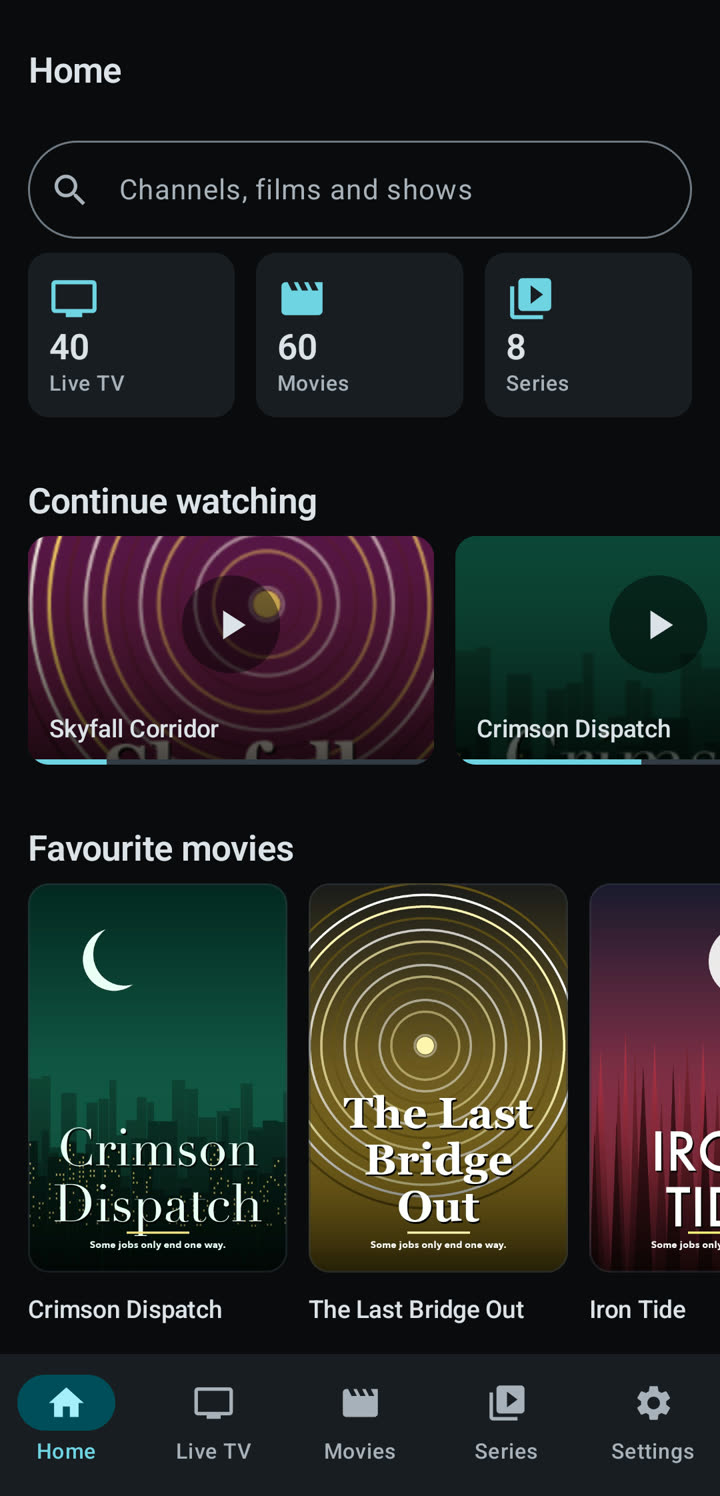
Pick up where you left off
A Continue Watching row, a watch history and favourites on the home screen.
How it works
Zee2 saves your place as you watch. You can remove one title from Continue Watching or from History, or clear the history, and keep your favourites.
- iPhone and iPad
- Android phone and tablet
- Smart TV
Keep things private
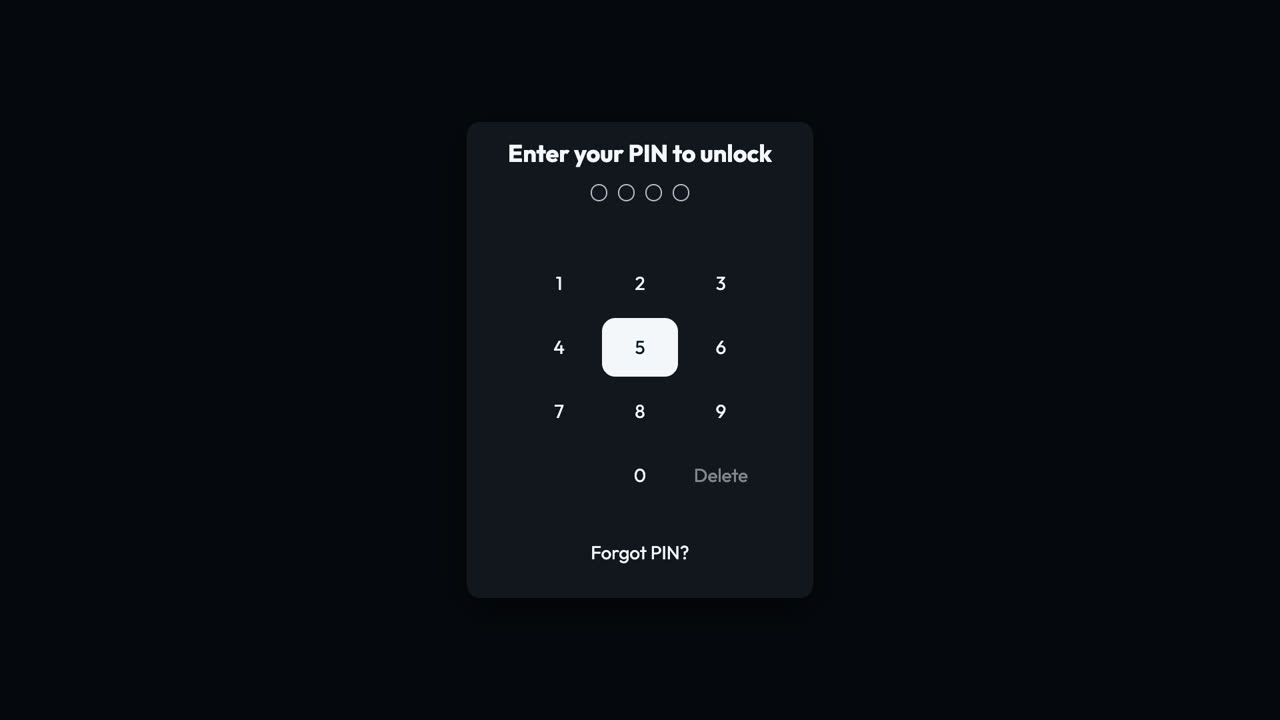
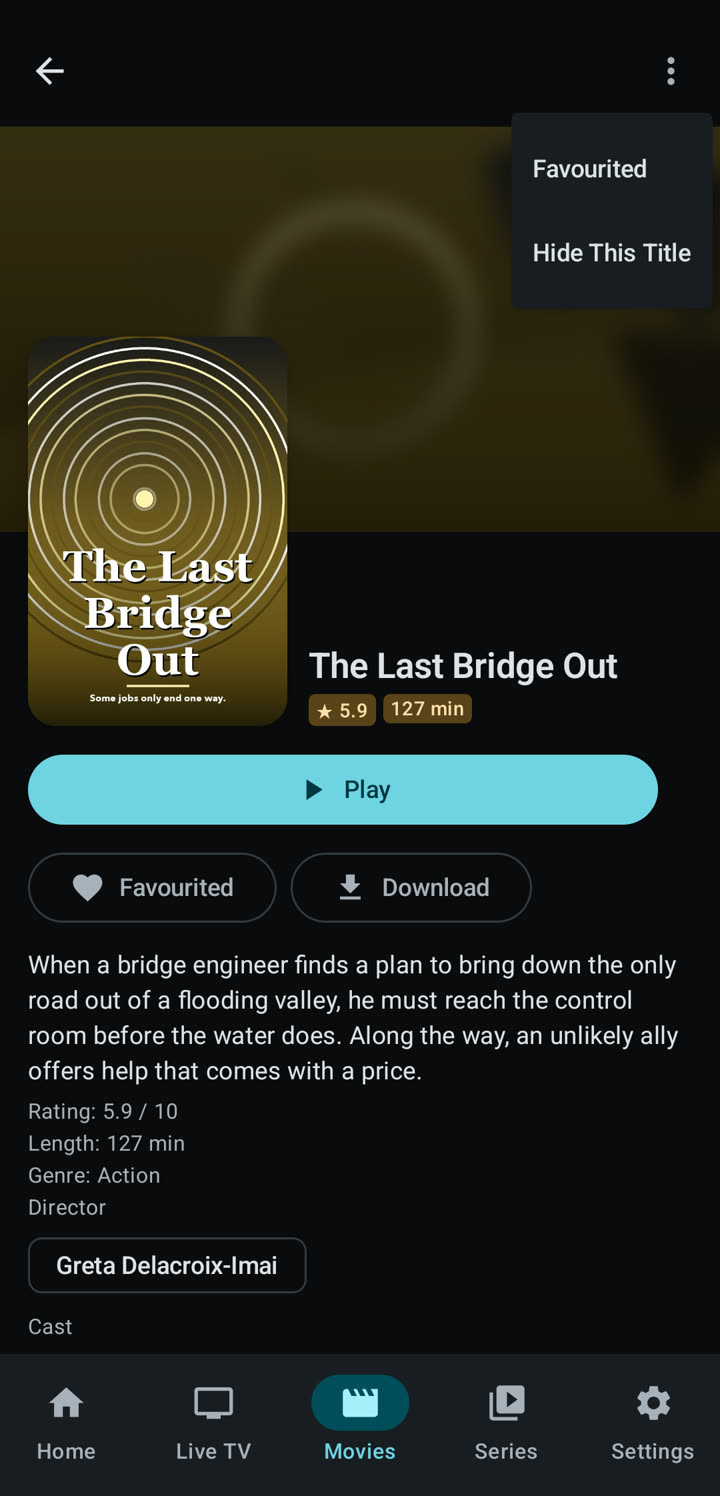
Hide adult content, single titles or whole folders. Lock the app. Everything stays on your devices.
How it works
A PIN of four to six digits protects what you hide. App Lock asks for it, or for your fingerprint or face on a phone, when the app opens. Zee2 has no account and no analytics.
On the TV you can hide folders, not single titles. A title hidden on a linked phone is hidden on the TV too.
- iPhone and iPad
- Android phone and tablet
- Smart TV
Audio, subtitles and picture quality
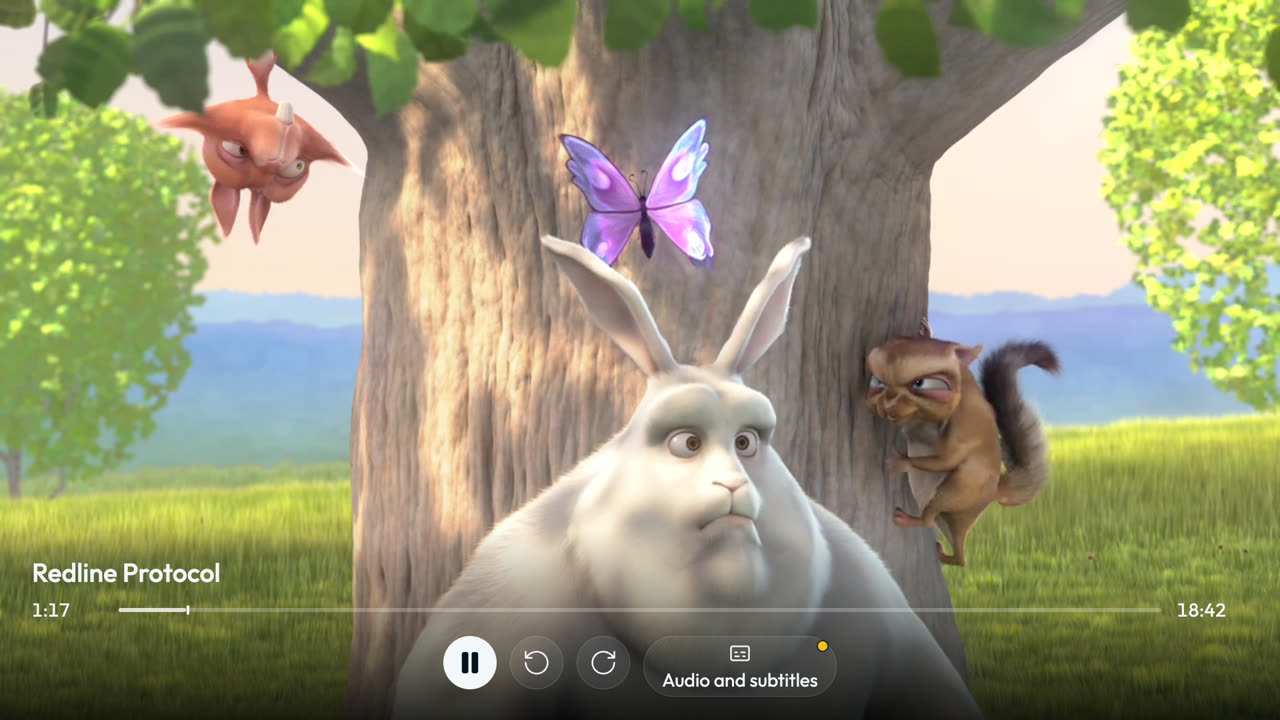
Choose the audio language, turn subtitles on or off and change their size, and pick a quality when the stream offers several.
How it works
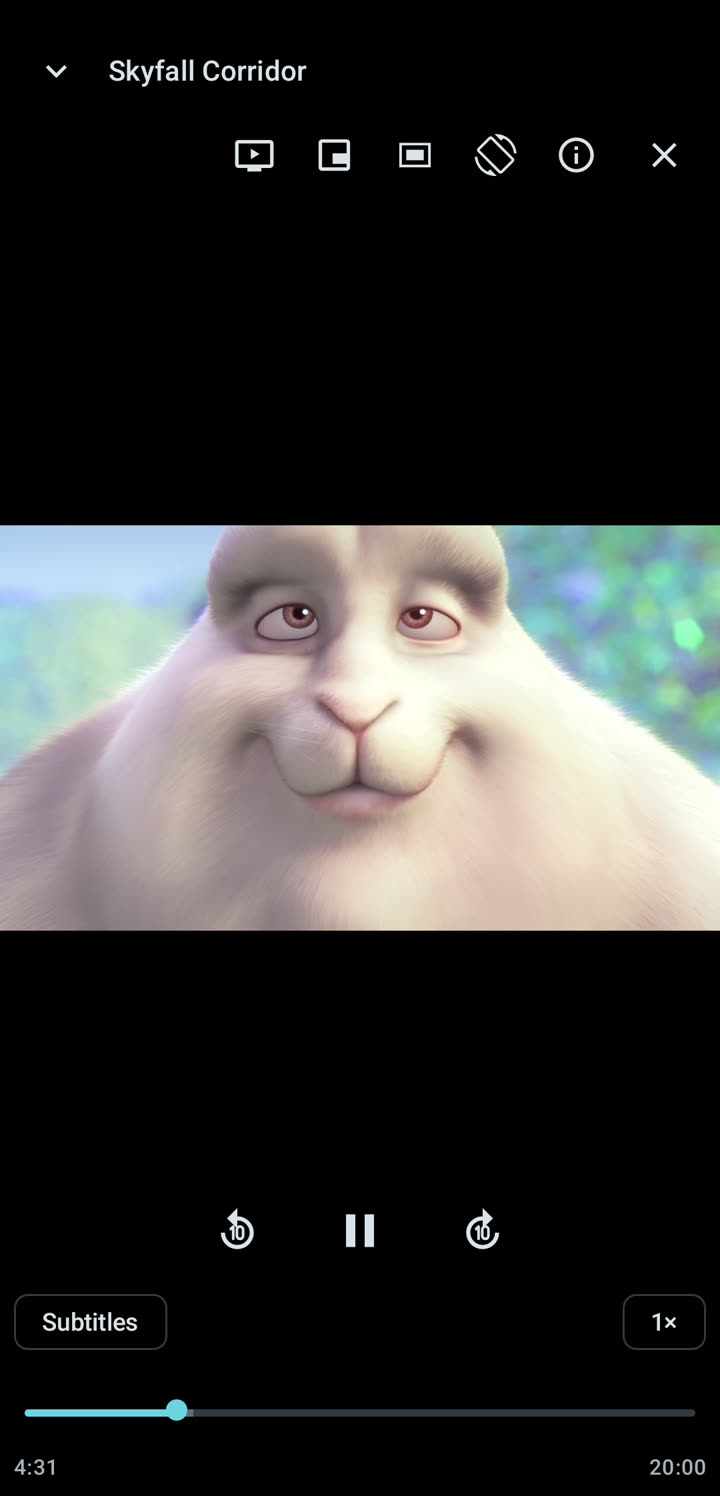
Open the player’s menus for audio, subtitles and quality. On phones and tablets you can also change the speed, the picture size and the gestures.
- iPhone and iPad
- Android phone and tablet
- Smart TV
Use the TV from your phone
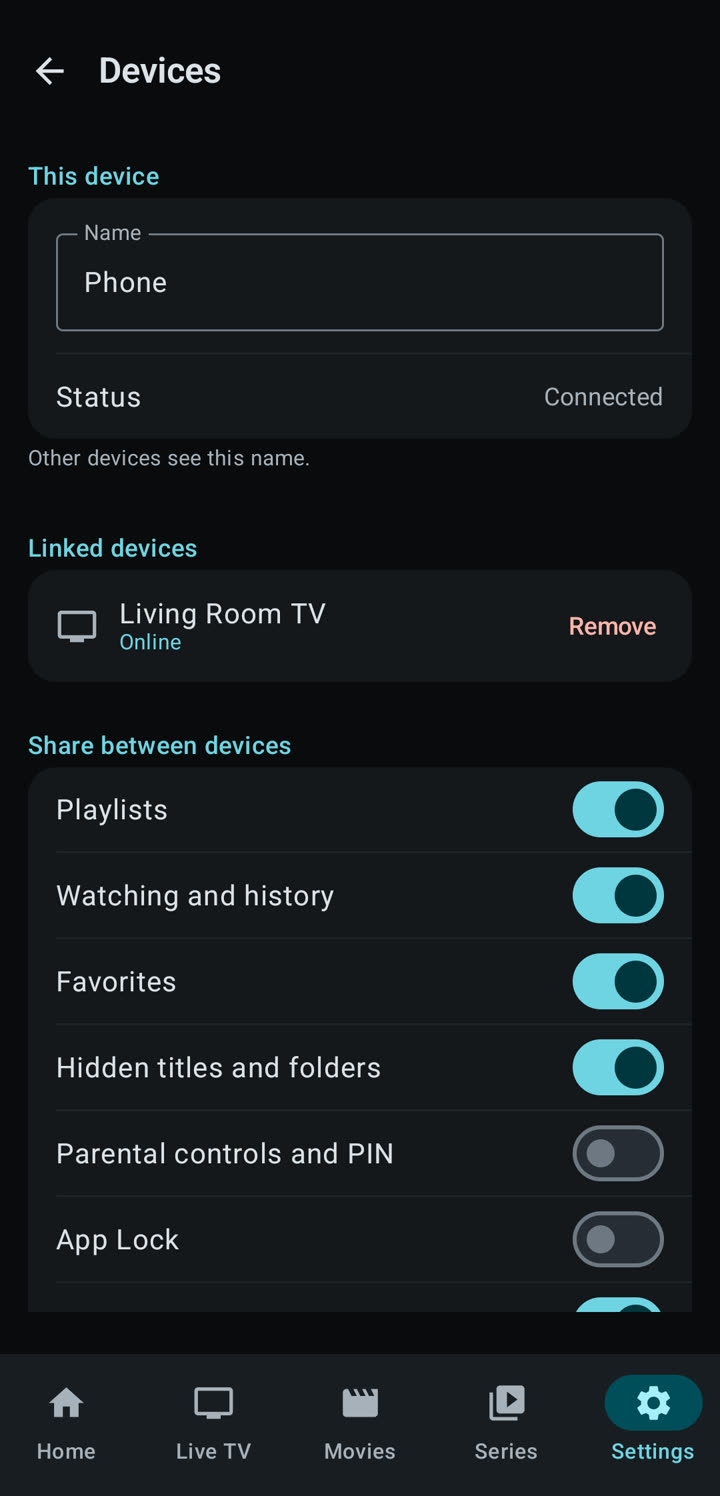
Link your phone, tablet and TV so they share your playlists and your place. Send what you are watching to the TV, or type a search for the TV on your phone.
How it works
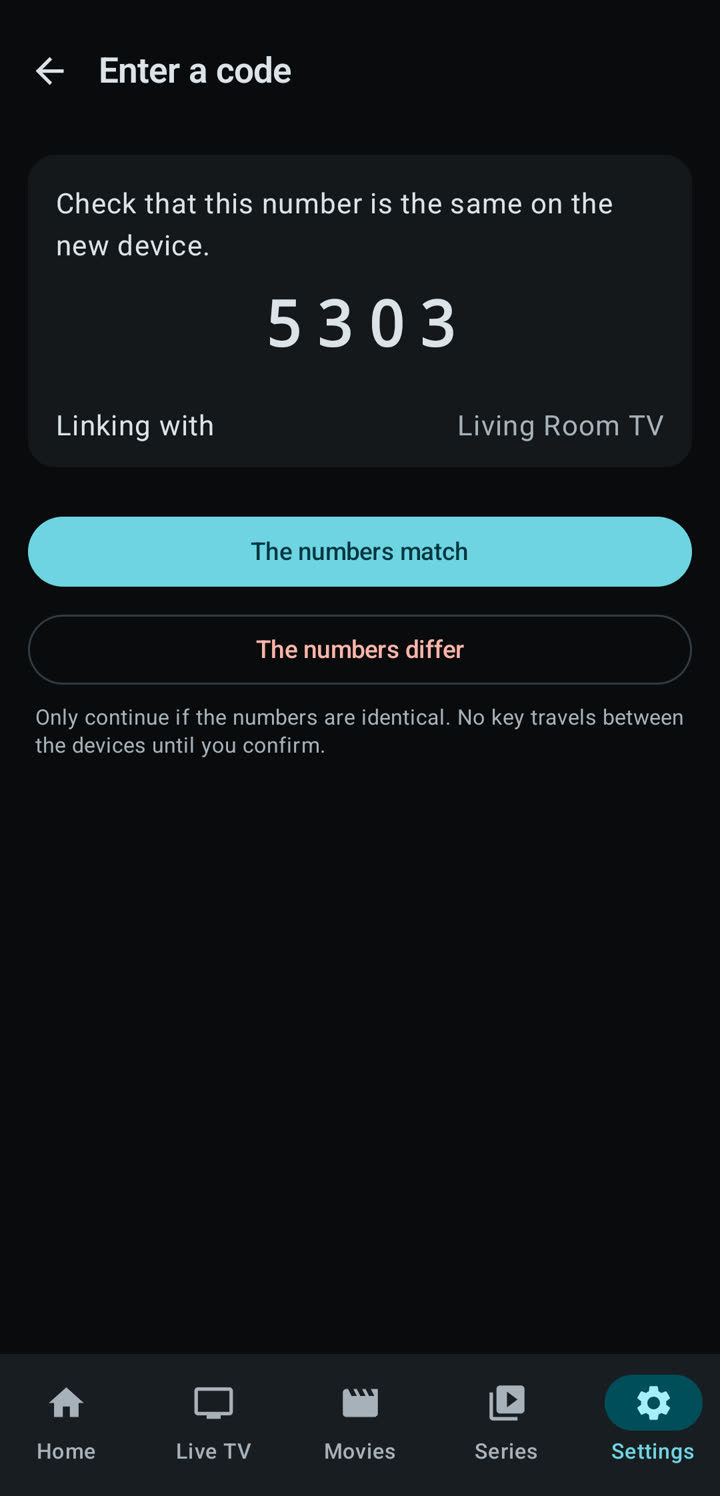
The TV shows a code. Your phone scans it, both show the same number, and you confirm. Devices talk through a small server in a form only they can open. There is no account. A group holds up to ten devices.
Linking is offered in app versions that include it. Both devices need the app open to share.
- iPhone and iPad
- Android phone and tablet
- Smart TV
Take it offline
Download a film or an episode to watch without a connection, and record a live channel.
How it works
Press Download on a film or an episode and it is saved on the device. Downloads can wait for Wi-Fi. Recording is for live channels, and is made on the device.
Downloads and recording are for iPhone, iPad and Android only. They are not on the TV.
- iPhone and iPad
- Android phone and tablet
Send it to a bigger screen
AirPlay on iPhone and iPad, Google Cast on Android, and Continue on TV with a linked TV.
How it works
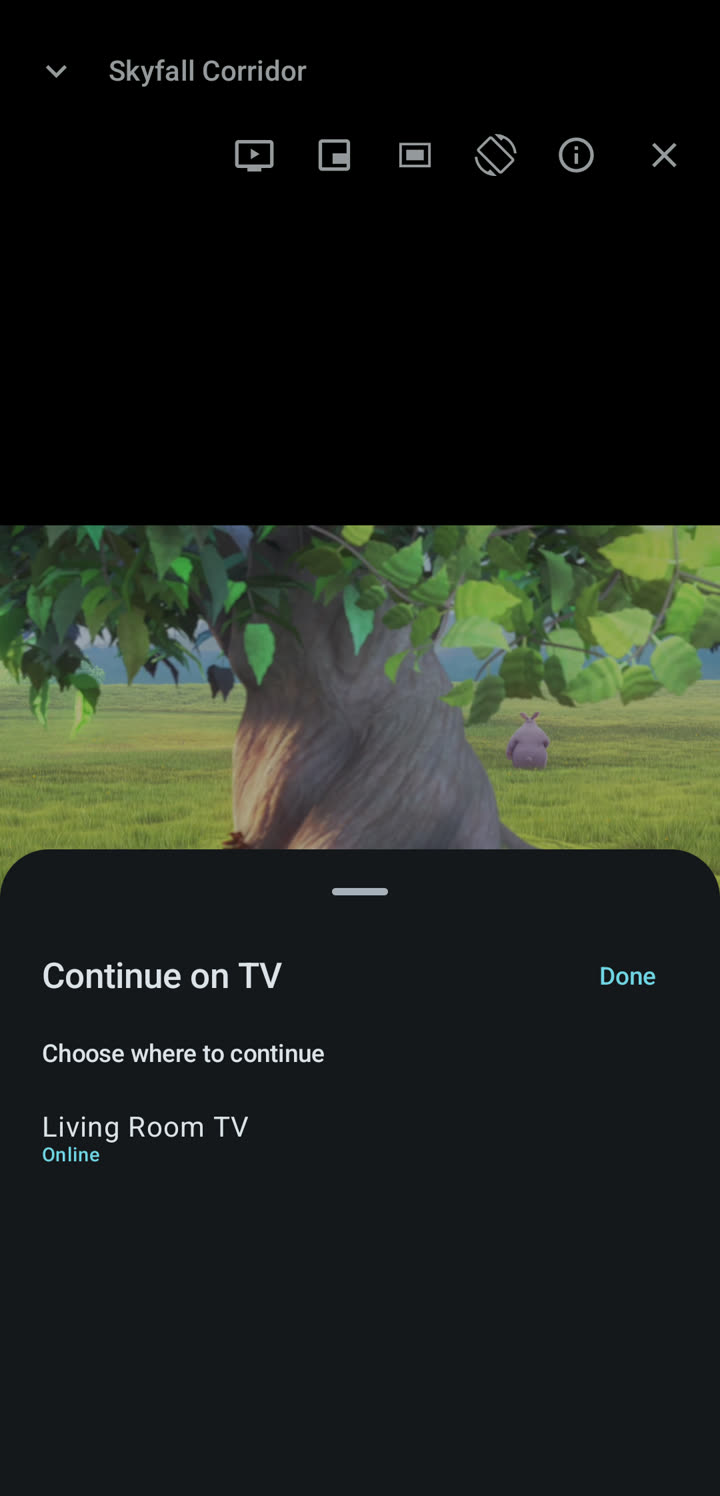
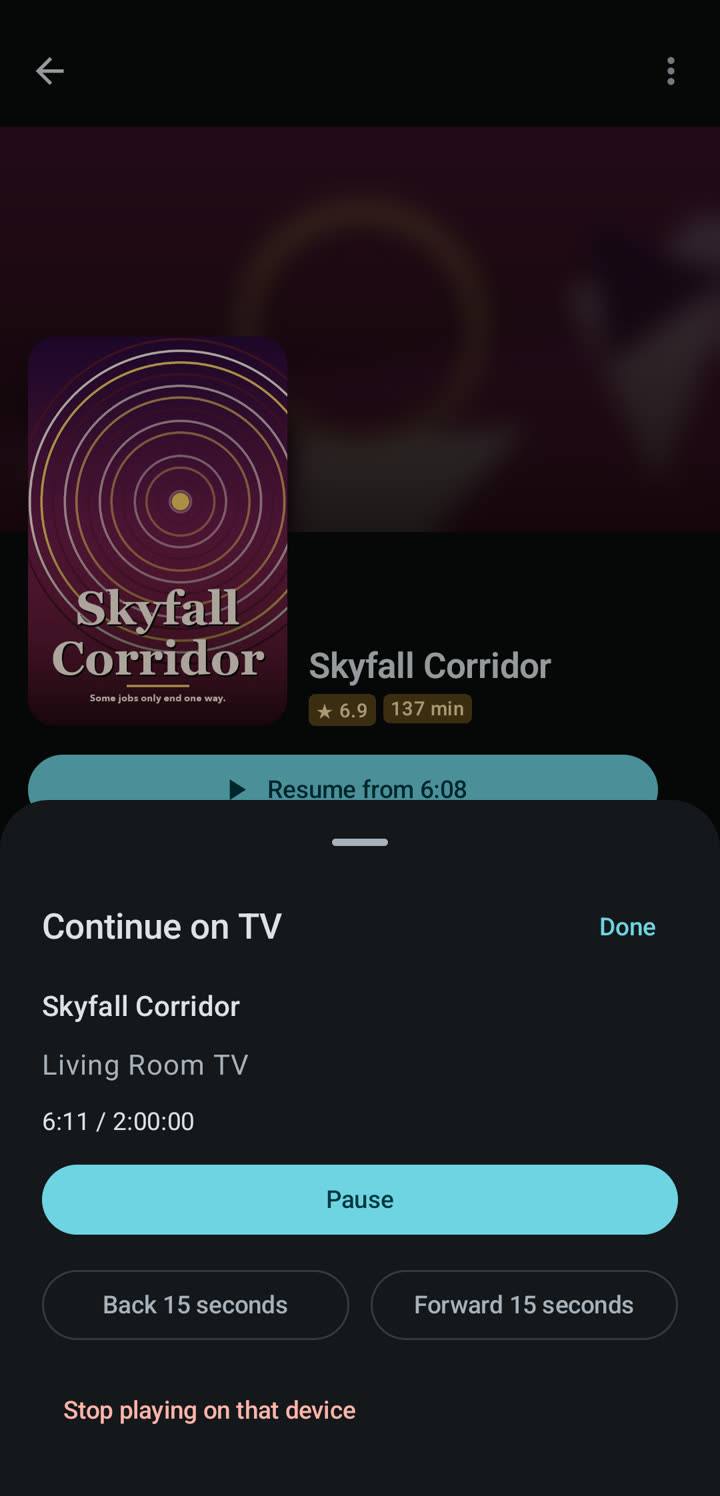
Press the AirPlay or Cast button in the player and choose a screen. With a linked TV, Continue on TV starts the title on the TV from the same minute, from the TV’s own copy of your playlist.
A Smart TV running Zee2 does not send anything. It can receive from your phone, and your TV maker may add AirPlay or Chromecast of its own.
- iPhone and iPad
- Android phone and tablet
- Smart TV
In your language
English, Arabic, French, Spanish and Portuguese, including right-to-left layout for Arabic.
How it works
The phone apps follow your phone’s language. The TV app has a language setting.
- iPhone and iPad
- Android phone and tablet
- Smart TV